To submit a VAT return using Easy MTD, perform some or all of the following steps:
It is assumed your business is VAT registered, your HMRC online services account is ready for Making Tax Digital for VAT and you have performed the actions in the Getting Started with VAT step-by-step guide.
View Obligations
To submit or view a VAT return you must view the associated open and closed obligations.
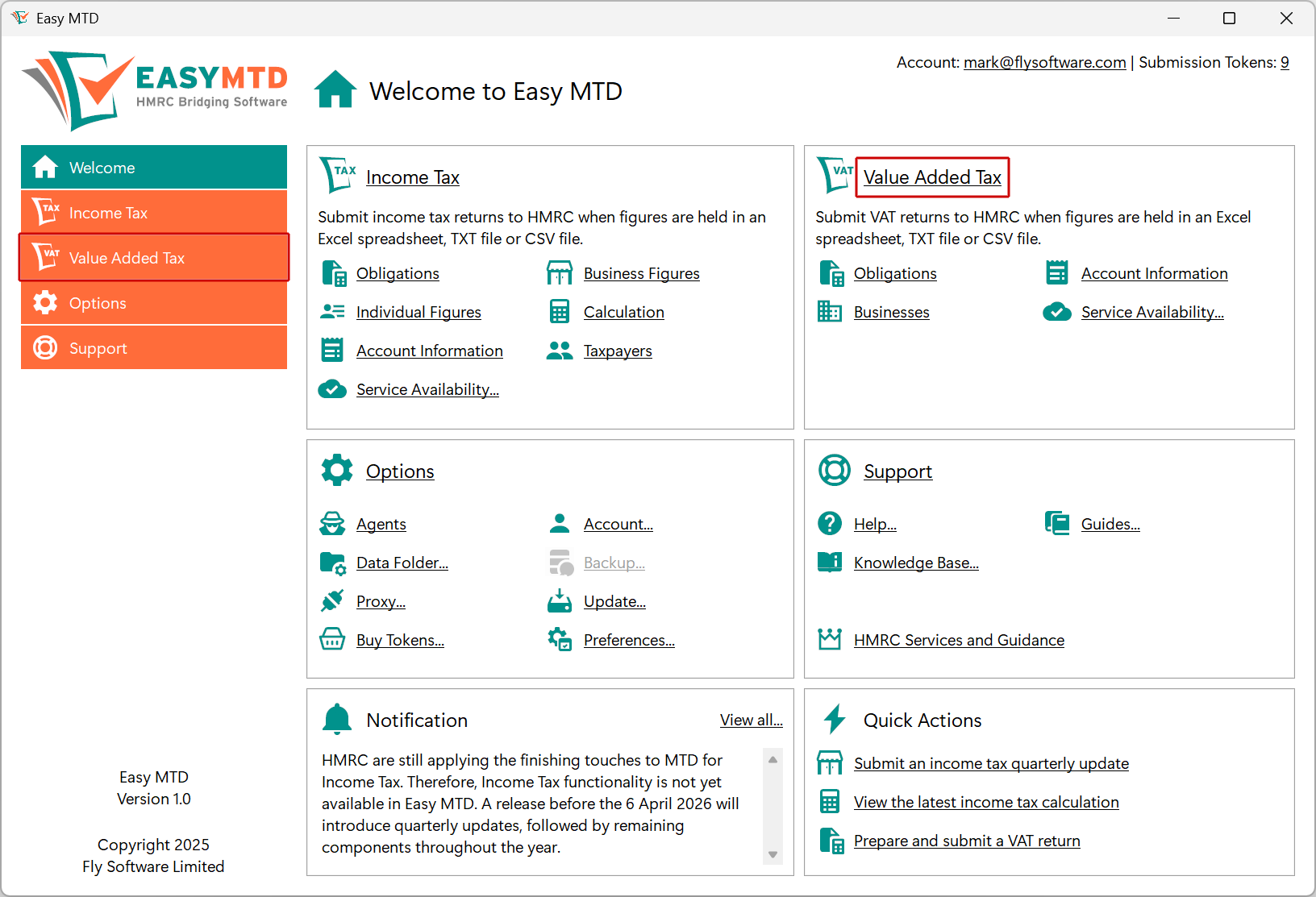
1. Click the Value Added Tax menu or the Value Added Tax link in the Welcome section
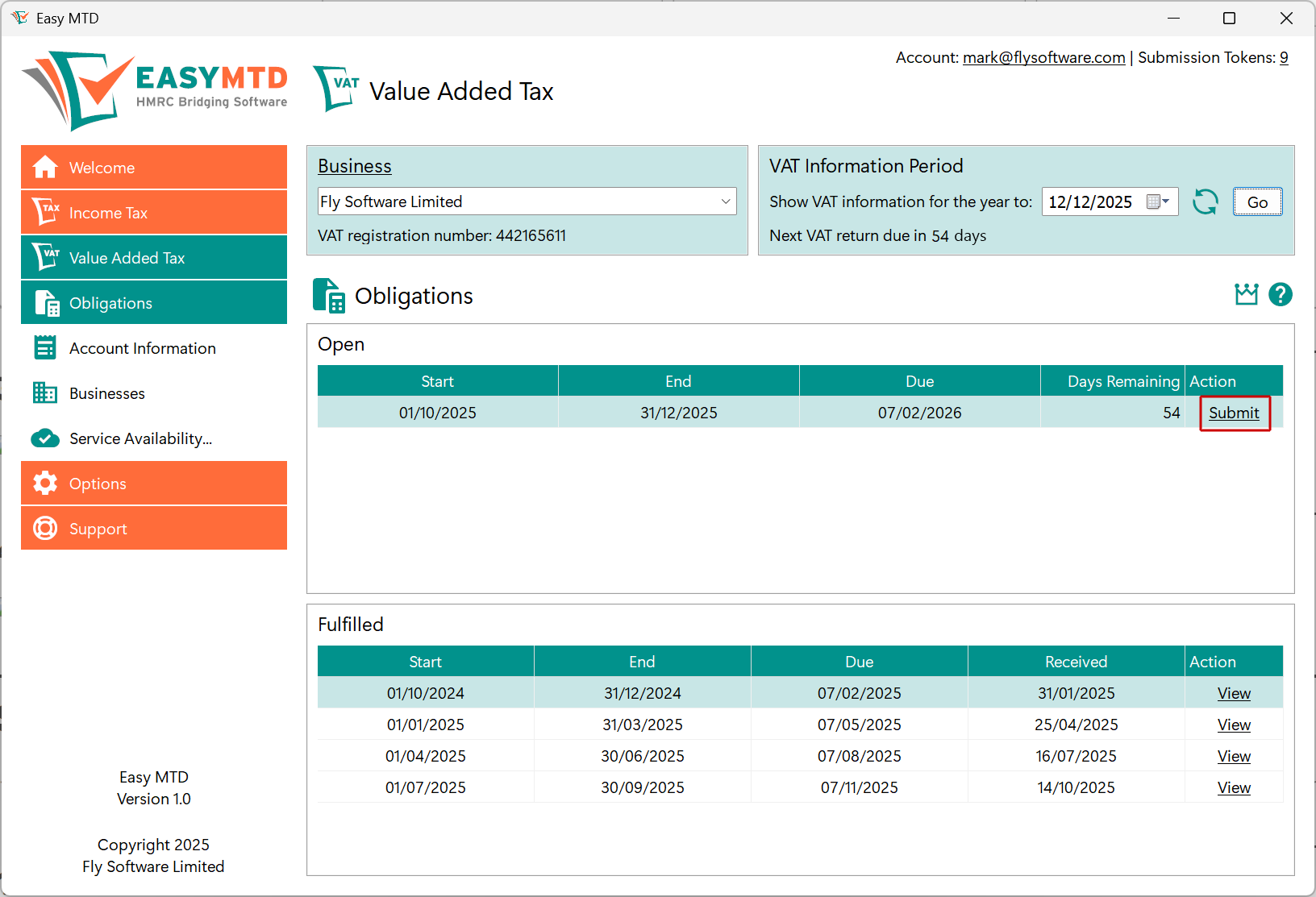
2. Click the Obligations menu or Obligations link

3. Click the Submit link to open the Submit VAT Return window
Select a Figures File
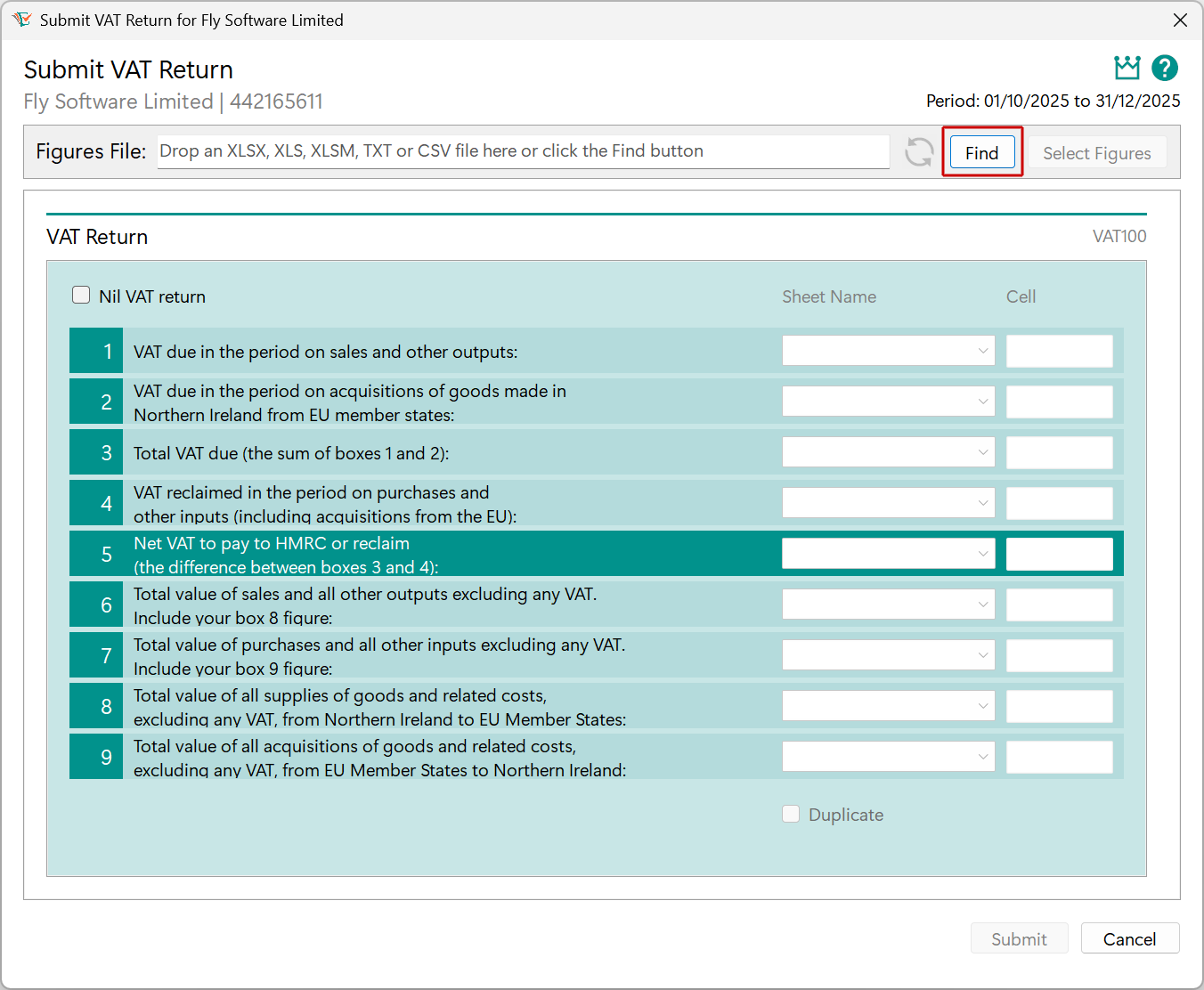
If you need to submit a nil VAT return, you can ignore the steps in this section and the following section, and instead click (tick) the Nil VAT return checkbox.
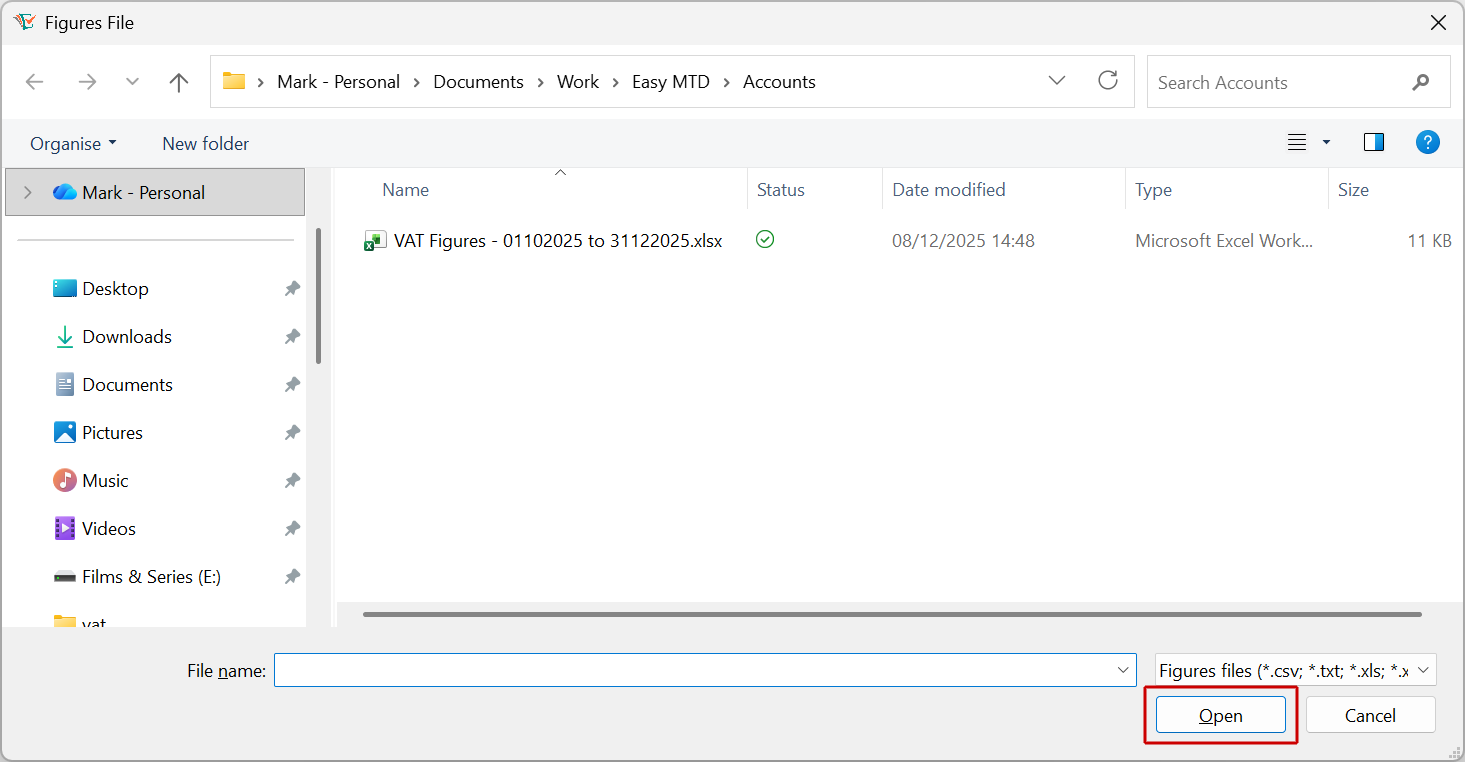
1. Click the Find button
2. Locate and click the figures file
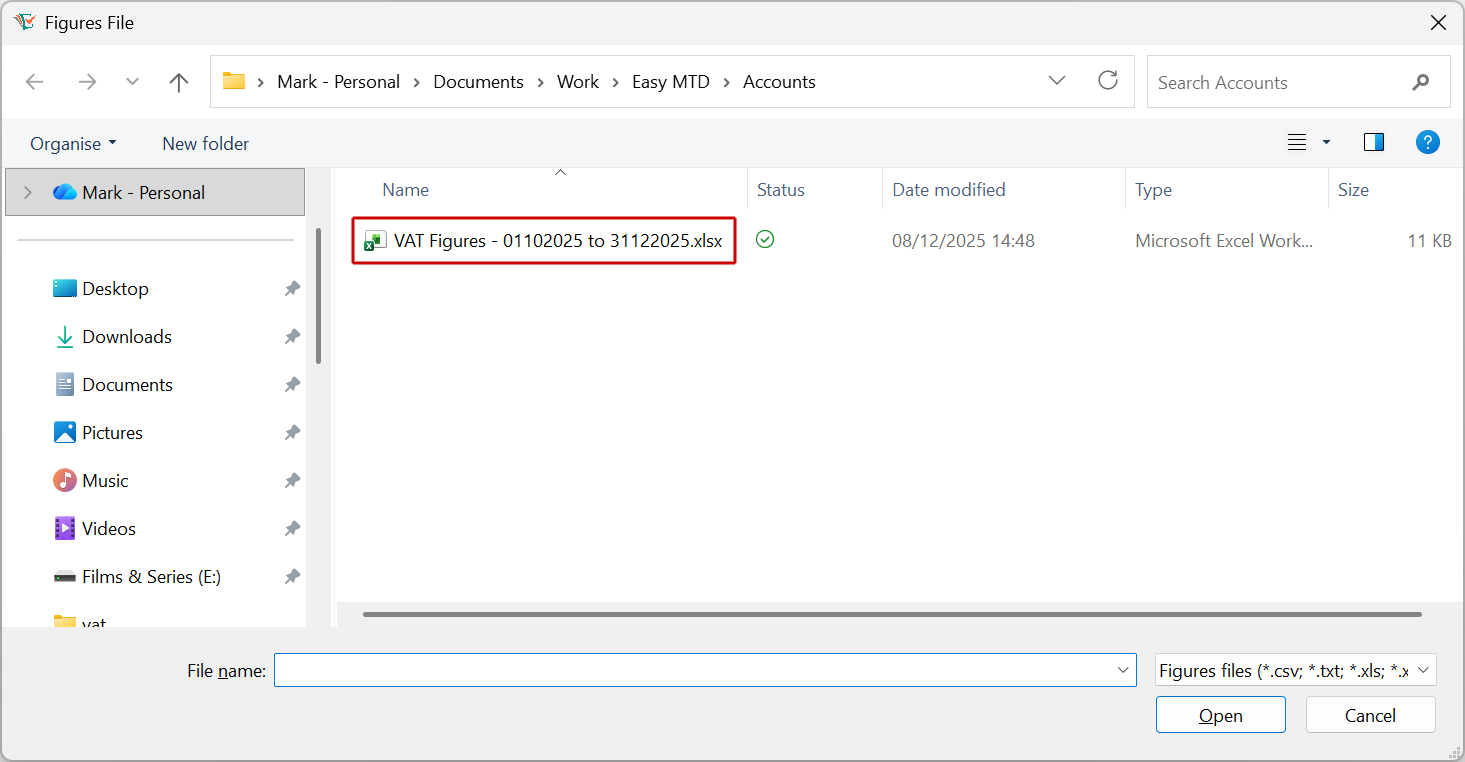
3. Click the Open button
Select VAT Figures
If you have selected a TXT or CSV file, you can ignore this section.
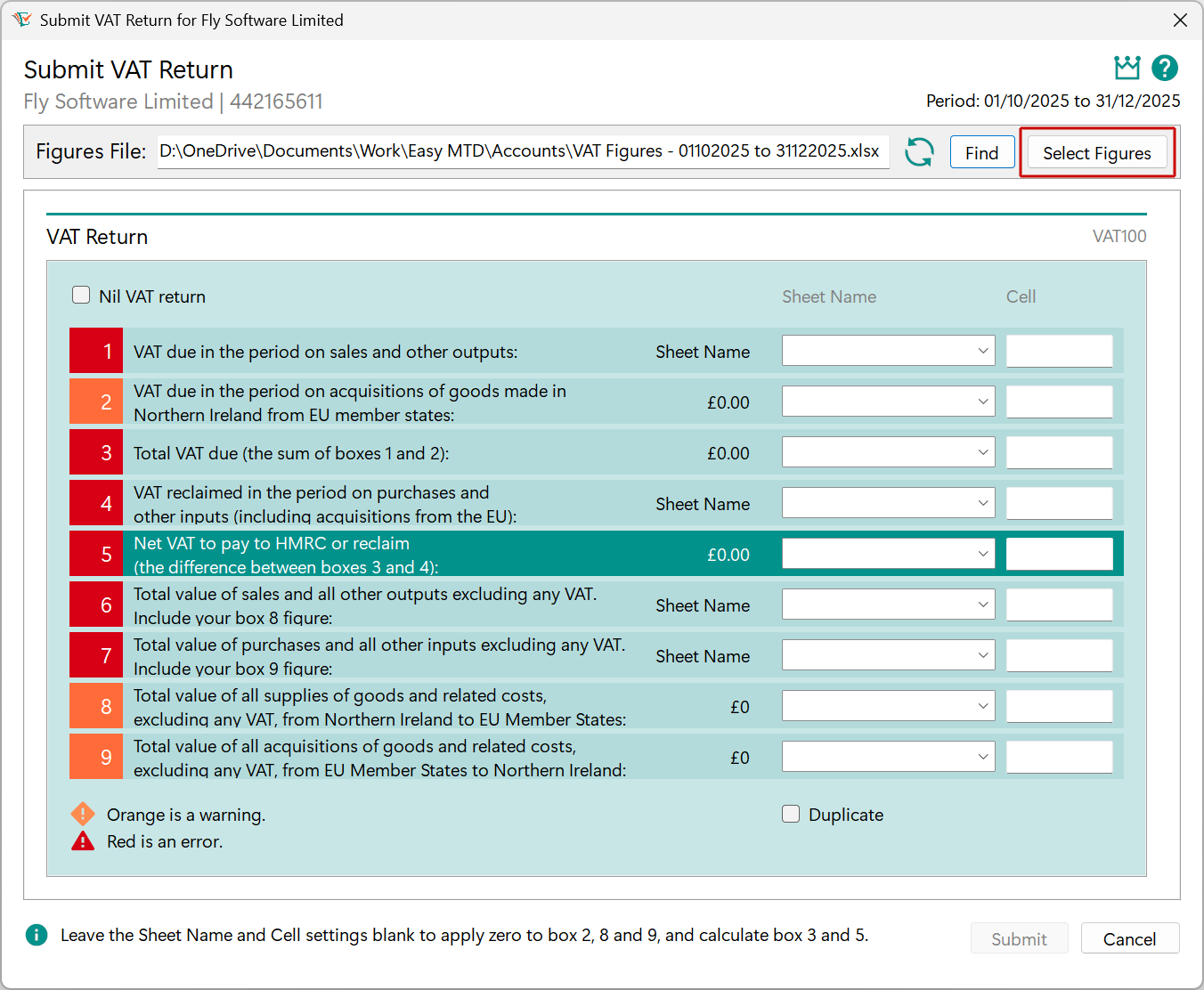
1. Click the Select Figures button
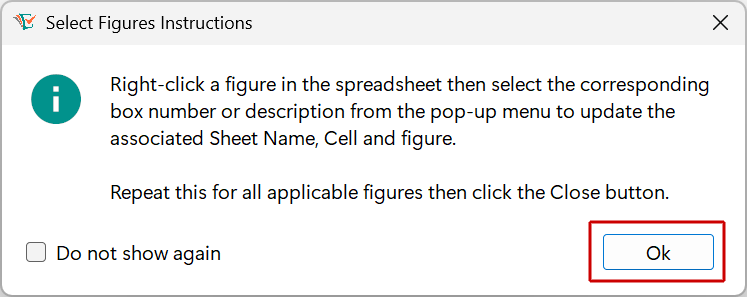
2. Click the OK button
3. Locate and right-click the Box 1 VAT figure
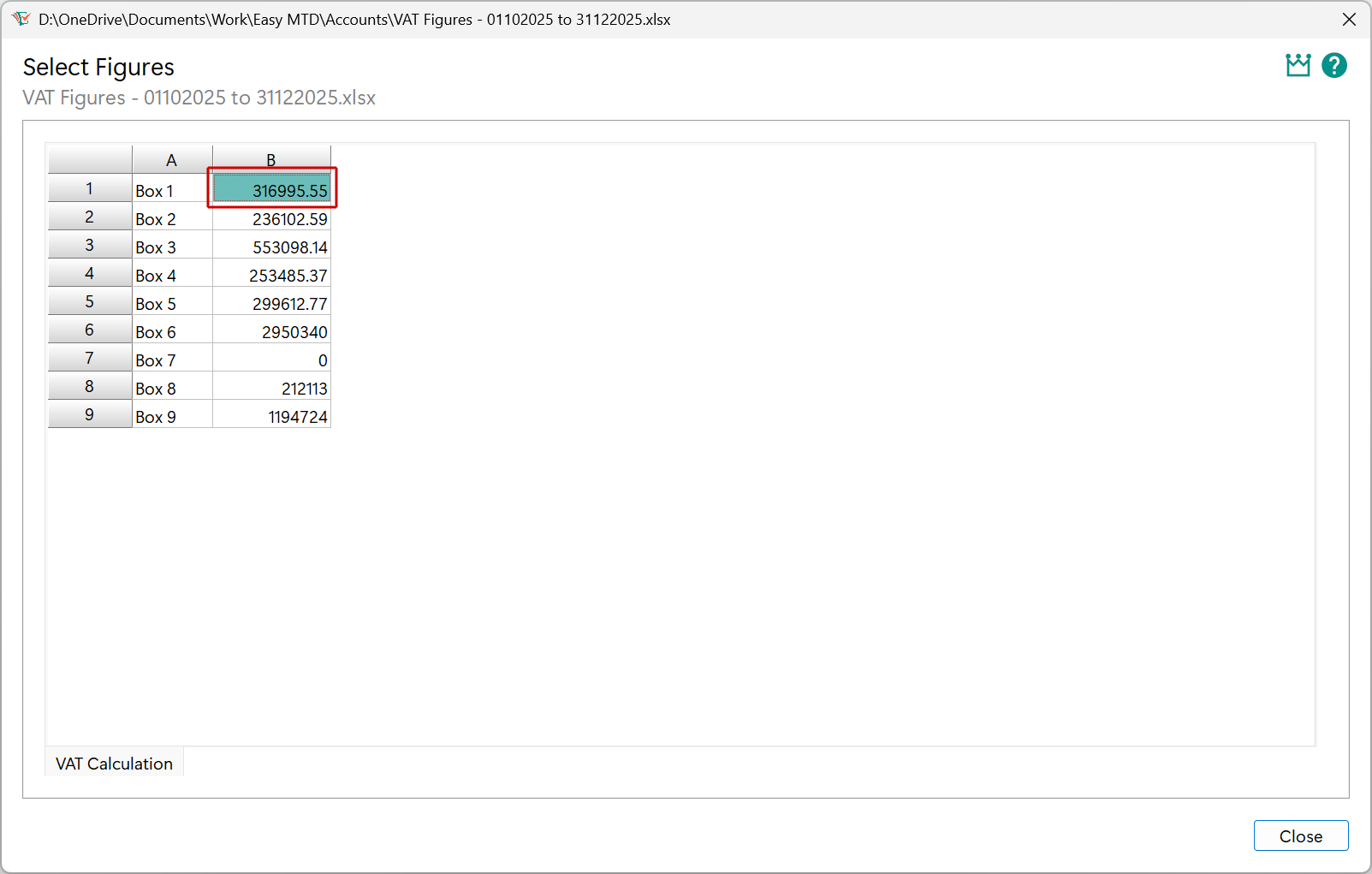
4. Click the Box 1 option
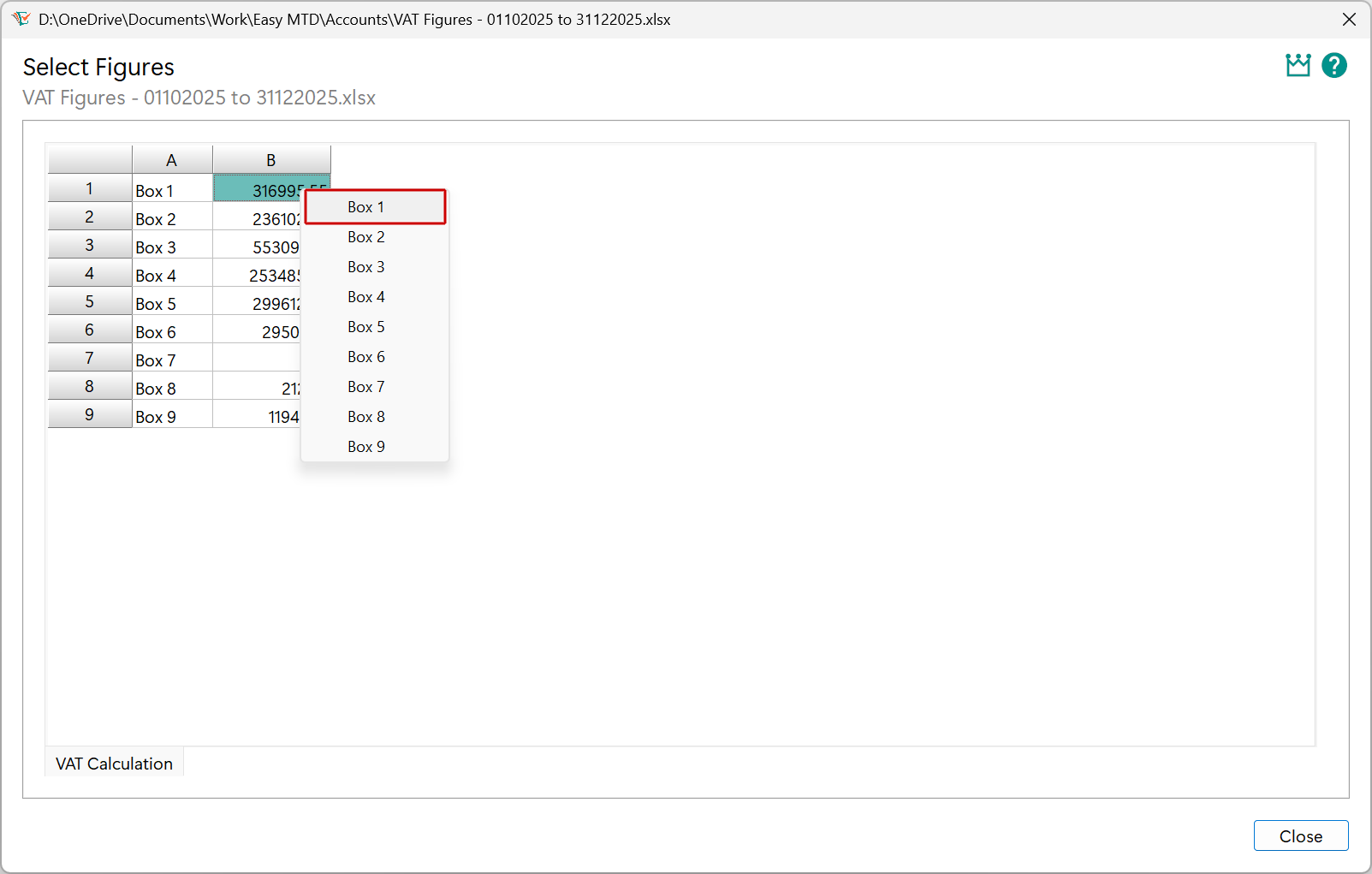
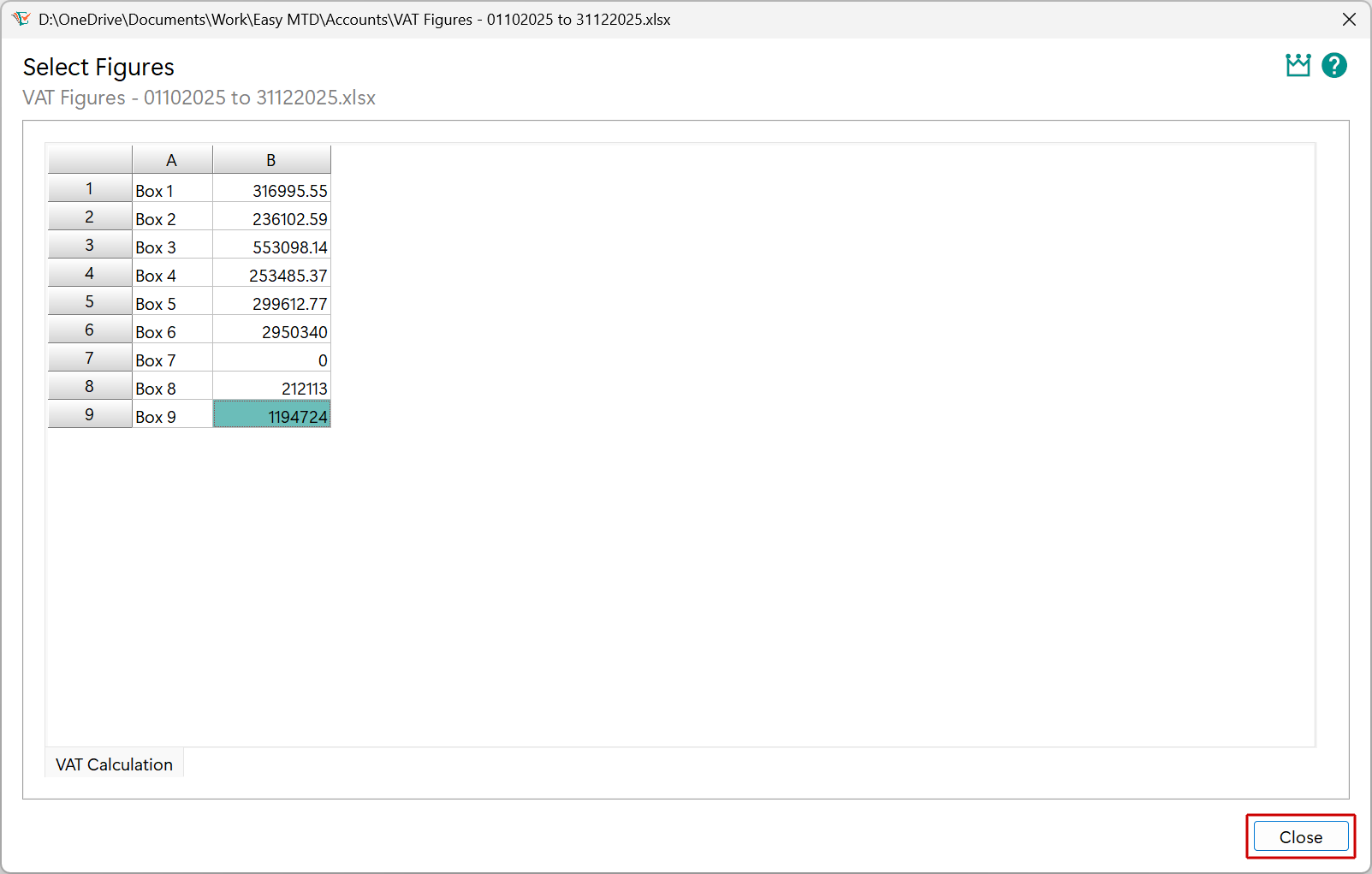
5. Repeat steps 3 and 4 for all applicable VAT figures
If VAT figures for box 2, box 8 and box 9 are normally zero, or you would like Easy MTD to automatically calculate the VAT figures for box 3 and box 5, do not select a box number for them (e.g. the associated Sheet Name and Cell settings should be blank).
6. Click the Close button
Submit the VAT Return
Just a few more simple steps before the VAT return is submitted to HMRC.
1. Ensure the VAT figures are correct
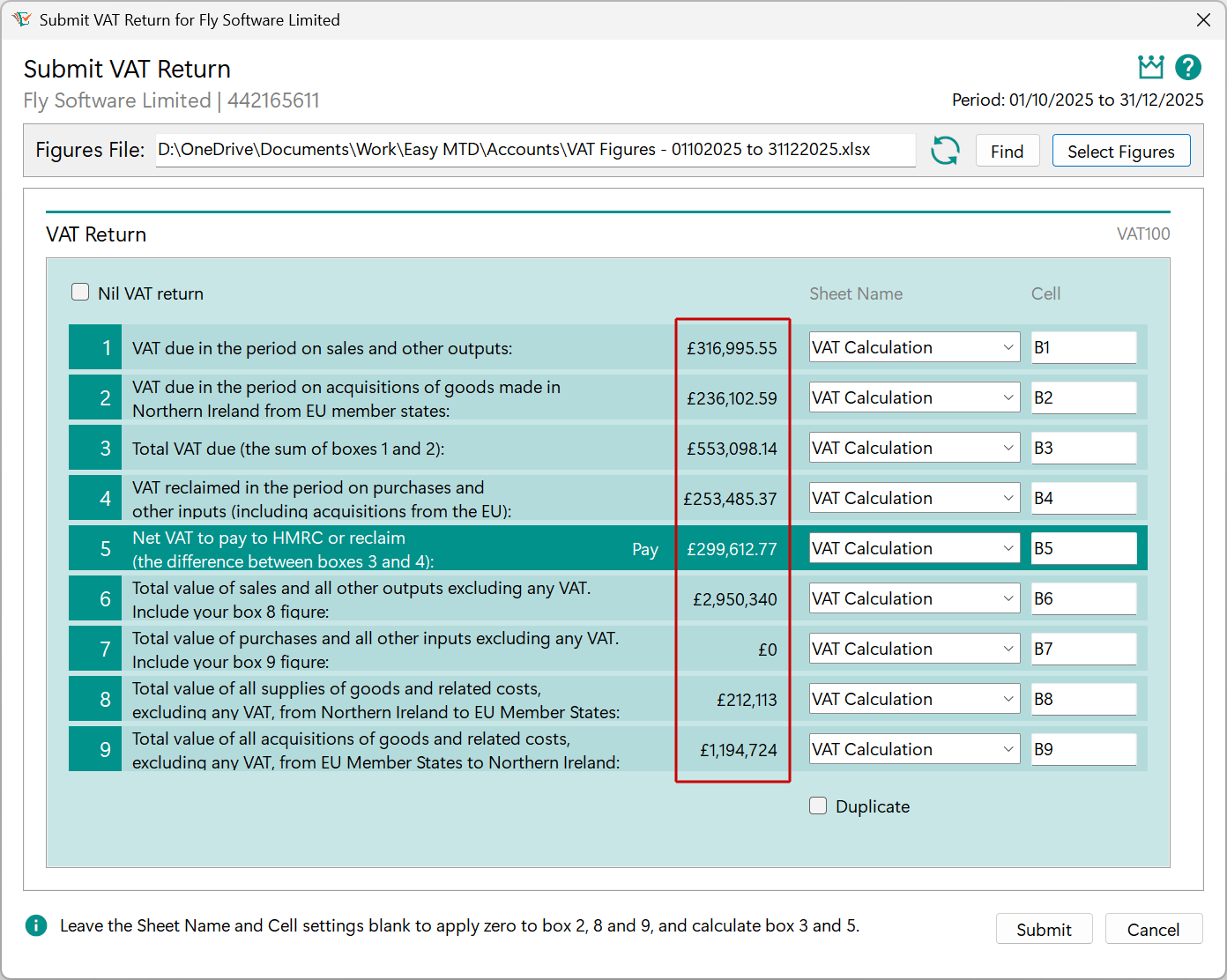
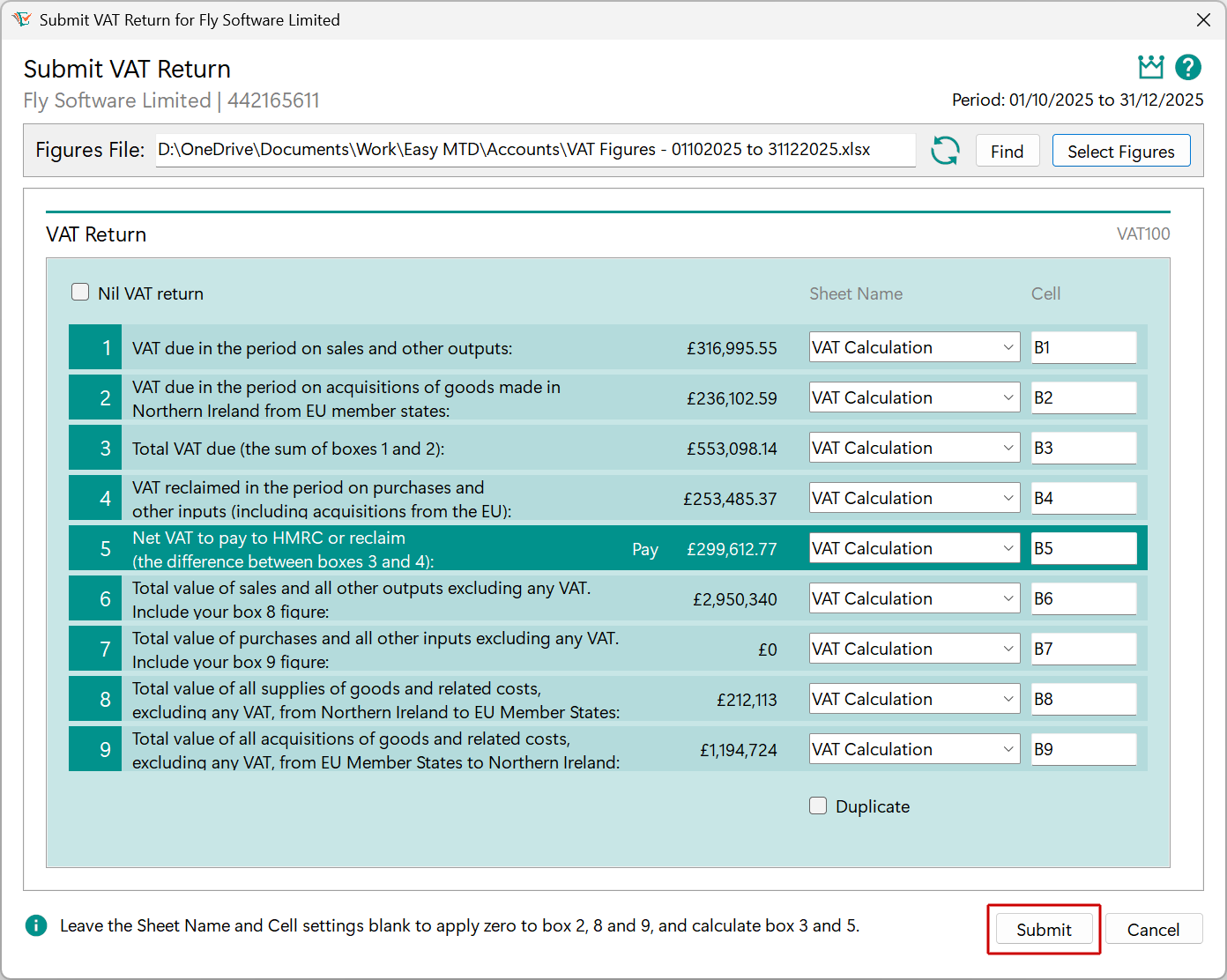
2. Click the Submit button
You will need a token in your Easy MTD account to progress further. You were gifted one when you signed up for the Easy MTD account or you can buy one.
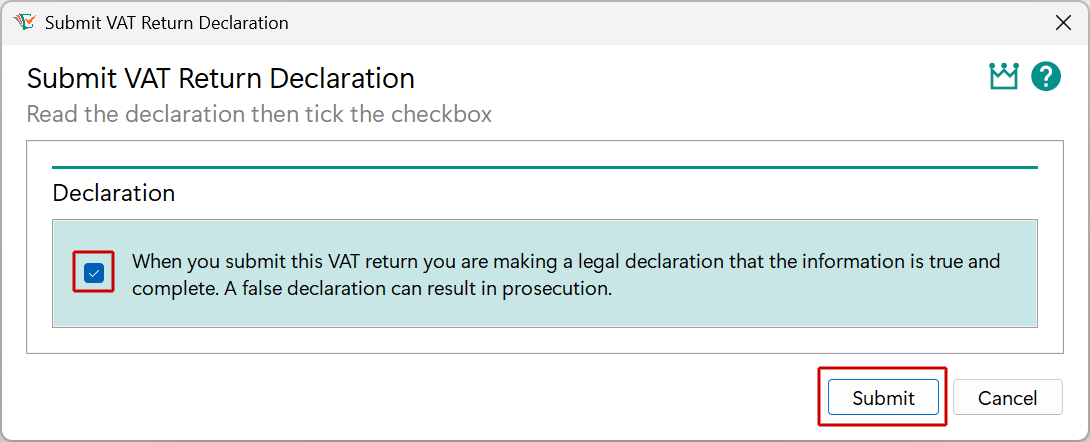
3. Click (tick) the declaration checkbox and click the Submit button
4. Click the OK button

If you are unable to submit the VAT return, use the support resources for help.